Web UI Guide
The GateKey Web UI provides a browser-based interface for downloading VPN configurations and managing your account.
Accessing the Web UI
Navigate to your GateKey server URL:
https://vpn.yourcompany.com
Login
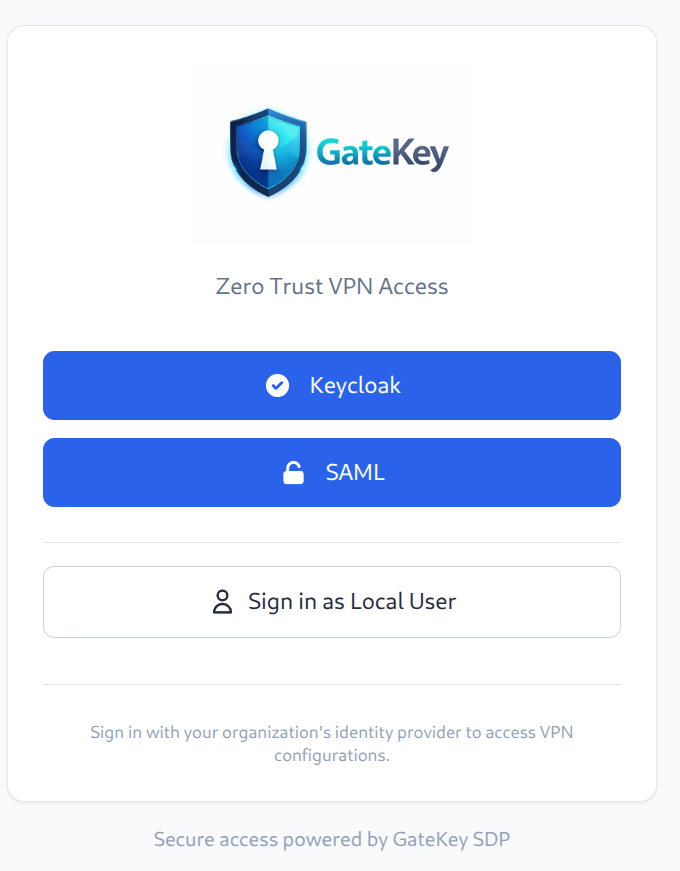
- Click your identity provider button (Keycloak, SAML, etc.)
- You'll be redirected to your company's identity provider
- Enter your credentials (Okta, Azure AD, Google, etc.)
- After authentication, you're redirected back to GateKey
You can also sign in as a local user if your administrator has enabled local authentication.
Dashboard
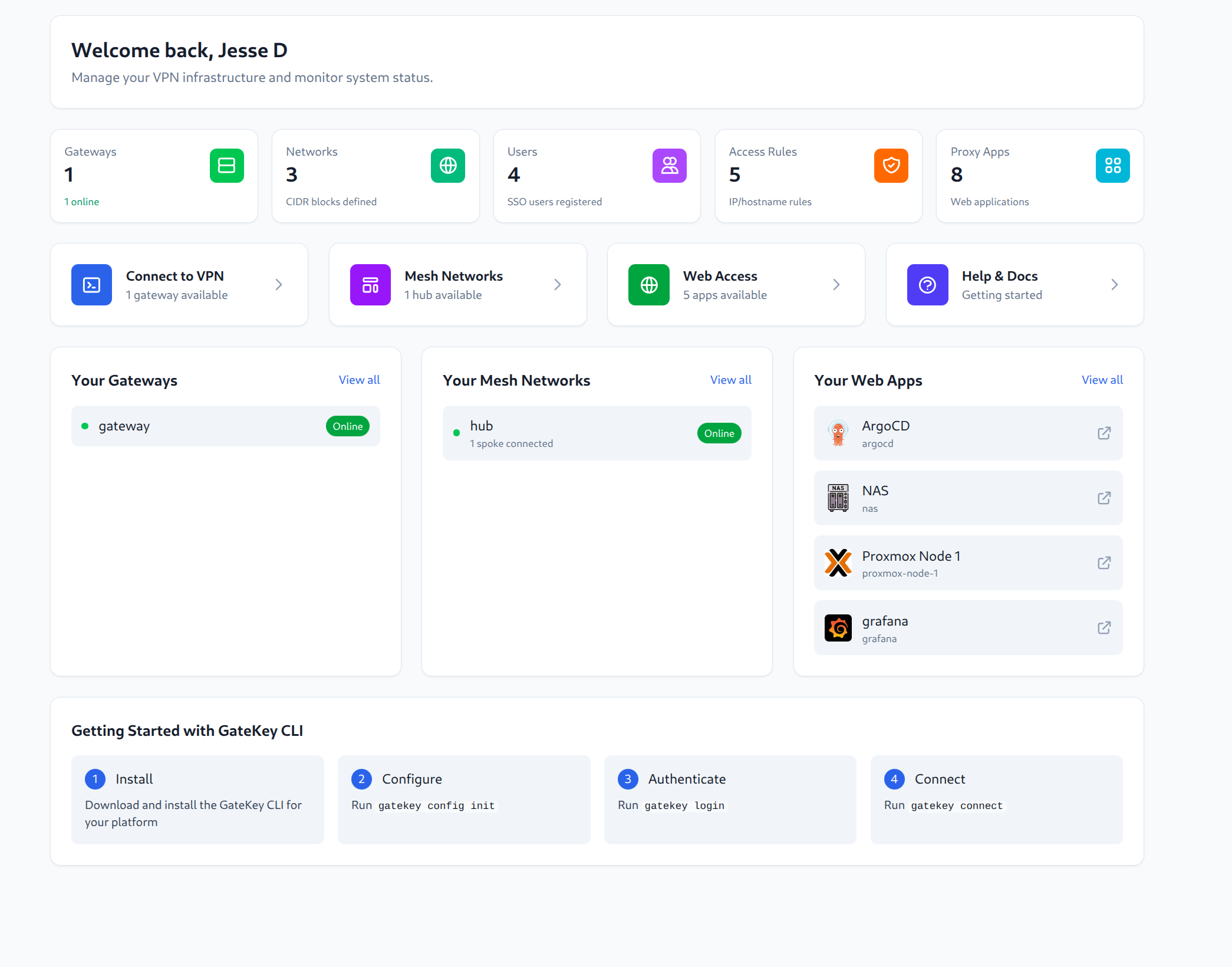
The dashboard provides a comprehensive overview of your VPN infrastructure:
Stats Overview
- Gateways - Number of available VPN gateways
- Networks - CIDR blocks defined for routing
- Users - SSO users registered in the system
- Access Rules - IP/hostname rules controlling access
- Proxy Apps - Web applications available for clientless access
Quick Actions
- Connect to VPN - Download configs or get CLI commands
- Mesh Networks - Access hub-and-spoke mesh VPN
- Web Access - Launch clientless web applications
- Help & Docs - Getting started documentation
Resource Panels
- Your Gateways - VPN gateways with online/offline status
- Your Mesh Networks - Mesh hubs with connected spokes
- Your Web Apps - Quick access to internal applications (ArgoCD, Grafana, etc.)
Download VPN Config
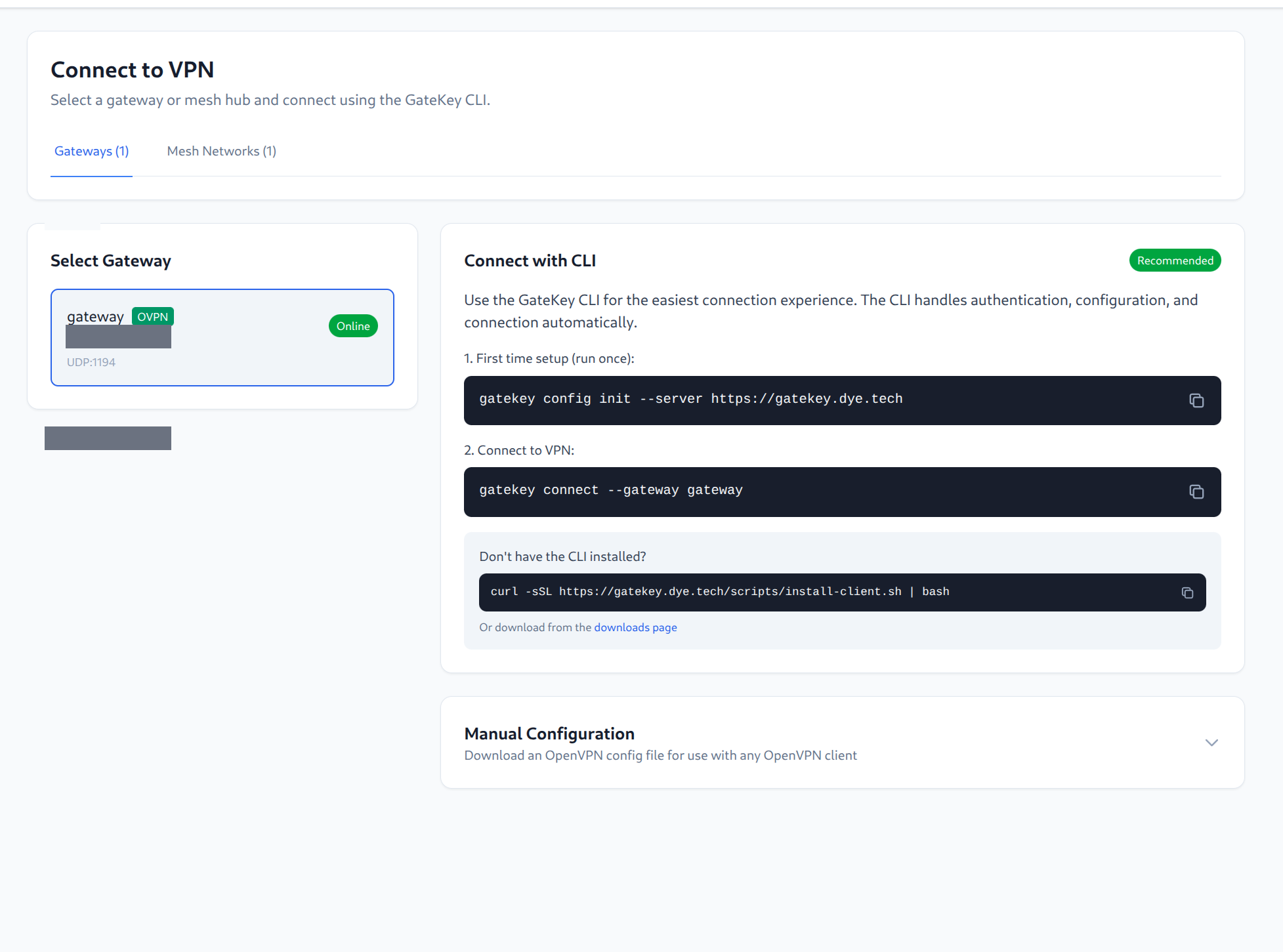
Click "Connect to VPN" from the dashboard to access the gateway selection screen:
Using the CLI (Recommended)
The right panel shows CLI commands for the easiest connection experience:
# First time setup (run once)
gatekey config init --server https://gatekey.dye.tech

# Connect to VPN
gatekey connect --gateway gateway
Don't have the CLI? Install it with:
curl -sSL https://gatekey.dye.tech/scripts/install-client.sh | bash
Manual Configuration
Expand "Manual Configuration" to download config files directly:
- Select your gateway from the left panel
- Choose your VPN protocol:
- OpenVPN -
.ovpnfile - WireGuard -
.conffile
- OpenVPN -
- Import the config into your VPN client
Configs are valid for 24 hours by default. After expiration, simply download a new config from the web UI.
Mesh Networks
If you have access to mesh networks:
- Navigate to "Mesh Hubs" in the sidebar
- Select a mesh hub
- Click "Download Config"
- Import into your VPN client
API Keys
Generate API keys for CLI or automation:
- Navigate to "Settings" → "API Keys"
- Click "Create API Key"
- Set a name and optional expiration
- Copy the key (shown only once)
Session Management
View and manage your active sessions:
- Navigate to "Settings" → "Sessions"
- See all your active logins
- Click "Revoke" to end a session
Navigation

The sidebar provides access to all GateKey features, organized by category:
User Features
- Dashboard - Overview and quick actions
- Connect - VPN gateway connection
- Web Access - Clientless web applications
- My Configs - Your downloaded configurations
- API Keys - Personal API key management
Identity & Access (Admin)
- Users - User management
- OIDC Providers - OpenID Connect configuration
- SAML Providers - SAML identity provider setup
Network (Admin)
- Topology - Network visualization
- Gateways - VPN gateway management
- Mesh - Mesh networking configuration
- Networks - CIDR block definitions
- Access Rules - Access policy management
Applications (Admin)
- Proxy Apps - Clientless web application proxy
Diagnostics (Admin)
- Network Tools - Troubleshooting utilities
- Remote Sessions - Remote agent access
System (Admin)
- Monitoring - System health and metrics
- Geo-Fencing - IP-based access restrictions
- All Configs - View all user configurations
- Settings - System settings
- Certificate CA - PKI management